
Redirecting music audio to my phone
Published May 28, 2026
15 min
Chris Hayes
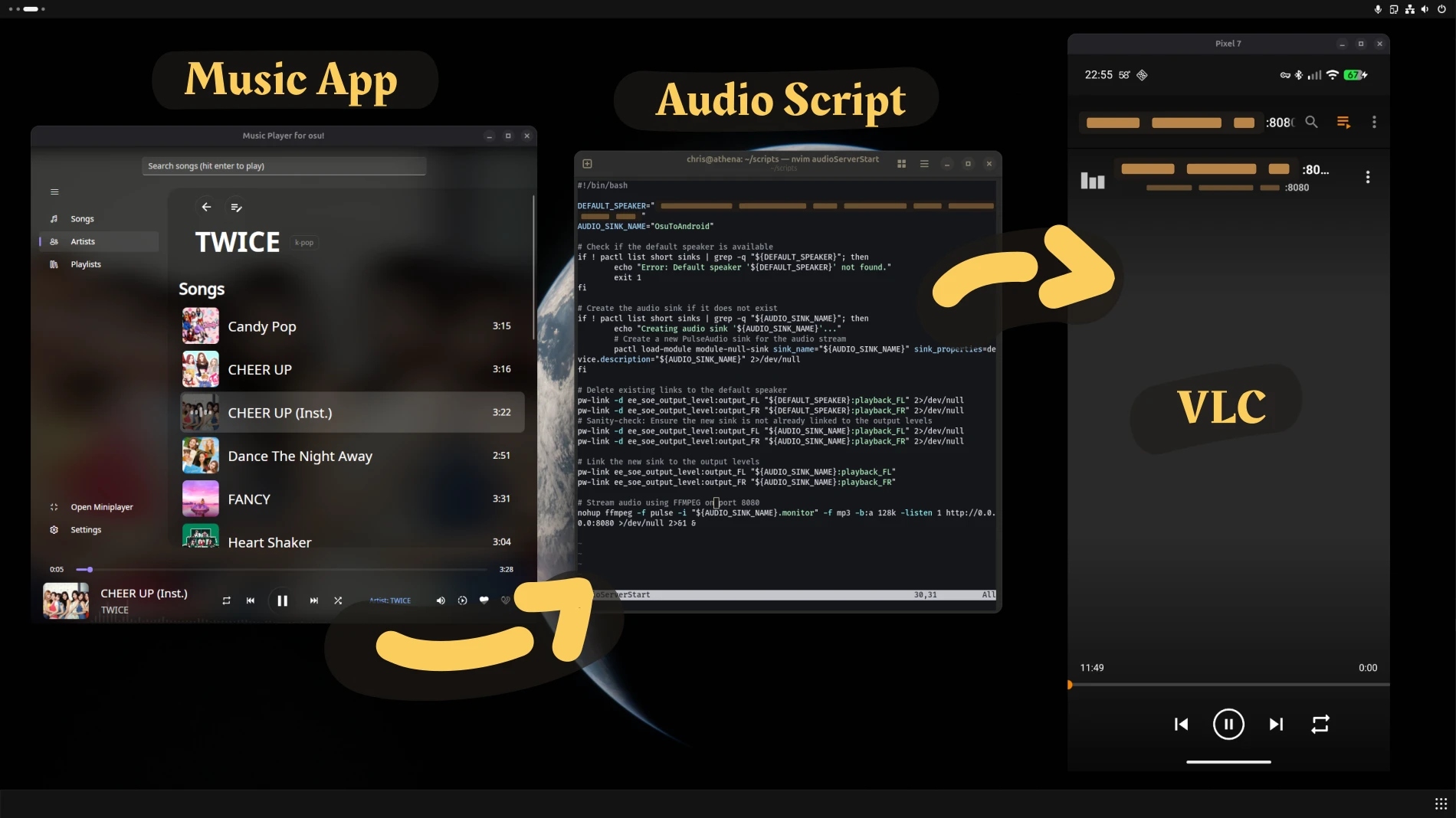

**Music player playing TWICE** on the left, Ubuntu terminal in the middle, and on the right is a phone screen with VLC open. **Music player playing TWICE** on the left, Ubuntu terminal in the middle, and on the right is a phone screen with VLC open.

Recently I wanted to stream music from my PC to my phone. Quirks in my setup meant I couldn't just play the original music files, I could only play the music through this desktop application.
Streaming to my phone proved possible, but not without challenges.
The Usual Way
I'm writing this post because I have an odd setup, but for context you might normally solve this with:
- Subsonic—run a Subsonic server on your PC and use any app that supports Subsonic. [1]
- Nextcloud—Hosting your MP3 on an all-in-one platform like Nextcloud and just playing your music through Nextcloud's music player. [2]
- Phone storage—As someone who always has way more phone storage than I need, I always forget about this option. And if you're using Nextcloud, it can automatically sync your music library to your phone.
1. My favorite Subsonic app was Subtracks (opens in a new window) , but it hasn't been updated in 4 years. As a replacement, Chora (opens in a new window) seems pretty nice.
2. Nextcloud Music also supports Subsonic, so you can use a Subsonic mobile app instead of the Nextcloud app if desired.
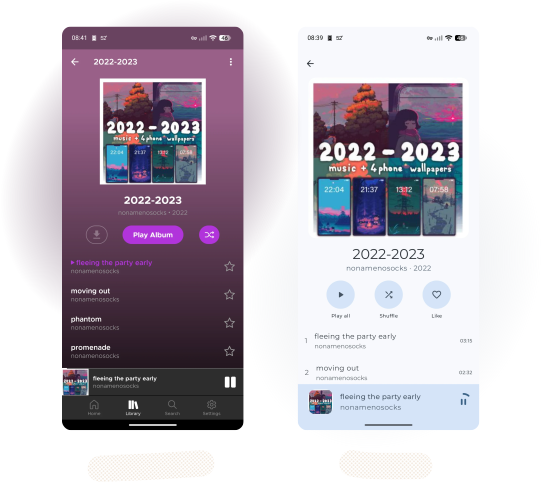
Two Subsonic mobile apps, Subtracks on the left, and YouAMP on the right. Both of them are connected to my Nextcloud. Btw, the pixel artist shown is on Mastodon. (opens in a new window)
The Limitation
None of those methods work for me because I don't have music files. I just have an application playing audio.
The workaround is to run a script, the "streaming server", that makes the audio available at an endpoint (aka URL). If a phone app talks goes to that endpoint, it receives the audio from the PC.
Which is actually not that complicated on Linux. With ffmpeg or vlc you can have that running with a single line of Bash:
ffmpeg -f pulse -i my-speaker.monitor -f mp3 -b:a 128k -listen 1 http://0.0.0.0:8080
In the line above, ffmpeg is taking the audio from my-speaker.monitor and making it available as an MP3 stream at http://0.0.0.0:8080 at 128 kbps.
My full script looks like this:
#!/bin/bash

DEFAULT_SPEAKER="alsa_output.usb-Blue_Microphones_Yeti_Nano.analog-stereo"
AUDIO_SINK_NAME="OsuToAndroid"

# Check if the default speaker is available
if ! pactl list short sinks | grep -q "${DEFAULT_SPEAKER}"; then
  echo "Error: Default speaker '${DEFAULT_SPEAKER}' not found."
  exit 1
fi

# Create the audio sink if it does not exist
if ! pactl list short sinks | grep -q "${AUDIO_SINK_NAME}"; then
  echo "Creating audio sink '${AUDIO_SINK_NAME}'..."
  # Create a new PulseAudio sink for the audio stream
  pactl load-module module-null-sink sink_name="${AUDIO_SINK_NAME}" sink_properties=device.description="${AUDIO_SINK_NAME}" 2>/dev/null
fi

# Delete existing links to the default speaker
pw-link -d ee_soe_output_level:output_FL "${DEFAULT_SPEAKER}:playback_FL" 2>/dev/null
pw-link -d ee_soe_output_level:output_FR "${DEFAULT_SPEAKER}:playback_FR" 2>/dev/null
# Sanity-check: Ensure the new sink is not already linked to the output levels
pw-link -d ee_soe_output_level:output_FL "${AUDIO_SINK_NAME}:playback_FL" 2>/dev/null
pw-link -d ee_soe_output_level:output_FR "${AUDIO_SINK_NAME}:playback_FR" 2>/dev/null

# Link the new sink to the output levels
pw-link ee_soe_output_level:output_FL "${AUDIO_SINK_NAME}:playback_FL"
pw-link ee_soe_output_level:output_FR "${AUDIO_SINK_NAME}:playback_FR"

# Stream audio using FFMPEG on port 8080
nohup ffmpeg -f pulse -i "${AUDIO_SINK_NAME}.monitor" -f mp3 -b:a 128k -listen 1 http://0.0.0.0:8080 >/dev/null 2>&1 &
It's a bit longer to include sanity checks. nohup and >/dev/null 2>&1 are for running the server in the background without logs.
Redirecting only one app's audio
I use pw-link to create an audio sink. An audio sink is like a virtual speaker. I'm using it to redirect only the music player's audio to the virtual speaker.
This means I won't hear music on both my PC and phone at the same time. It also means my phone ONLY gets the music player's audio, and not random PC notification sounds.
If you wanted to just send any and all audio to your phone, you can just skip the pw-link steps and have ffmpeg listen to your default audio output.
Putting it all together
There are a couple missing puzzle pieces with just a simple audio server. Luckily I was able to solve them with tools I already use. It really depends on what software you already using.
VLC for Android—To actually play the music on your phone, VLC works pretty well. MPV or a mobile browser may also work. With VLC you just provide the (VPN) IP of your PC with :8080 for port 8080.
Accessing your server—One challenge is how your phone reaches your PC over the internet. That's kinda out of the scope of this post, but unless you're on LAN, it's pretty hard to do without using a VPN or a tunneling service like ngrok. [3] I already use Tailscale for my VPN, so that did the trick.
3. If you have fiber, your network is probably behind a CGNAT (opens in a new window) . Unless you pay for a static IP, there's no chance your phone is finding the audio server.
Controlling playback
This is a major short-coming of this method. The FFMPEG/VLC audio streaming server is acting like an internet radio just for your phone. If you want to skip songs or pause, you're out of luck. This audio streaming server can't control playback.
I found a pretty decent work-around, but it requires KDE Connect. I already use KDE Connect (opens in a new window) to do a few PC tasks remotely from my phone. One thing KDE Connect can do is control media playback of any software running on your PC. [4]
This happens to be exactly what we need here, and I've found the combination of playing the stream with VLC and controllin playback with KDE Connect works pretty great.

KDE Connect on mobile shows that "Easy" by LE SSERAFIM is playing. The album art is center screen. Audio playback controls are along the bottom: next/back, play/pause, shuffle.
A bonus feature with KDE Connect is you can add bash scripts you can run remotely from your phone. So, it's possible to remotely launch your music application and start the audio streaming server without ever touching the PC.
4. Linux applications use "MPRIS" to allow your keyboard to have buttons that control playback. MPRIS allows KDE Connect to not just control playback, but also fetch cover art. I maintain the music player shown, and MPRIS was a bit of a pain, but rewarding to see it working.
Link: https://wiki.archlinux.org/title/MPRIS
Fin.
Well, there you go.
With a short bash script, a VPN, and KDE Connect, you're streaming music from your desktop on-the-go.
I never said why I don't have MP3 files—I like to listen to the music from the rhythm game, osu!. I use a FOSS music player that reads the actual game files. This allows me to take walks while listening to osu! game music.
One weird issue I've noticed with the FFMPEG/VLC setup is the buffer can reach 20-30 seconds, which means it's 20-30 seconds behind what the PC is playing. Probably fixable, but right now it plays very smoothly, so I'm not in a hurry to fix.